
Search Smarter, Not Harder
Since projects can contain limited or in depth project information, LiensNC provides different methods for users to search for filings. It's up to you to decide which option works best with the project details you have. This area of the site should assist you with generating a manageable amount of results when performing your search.
Search Options...
Click on the tabs to see additional information about searching.

|
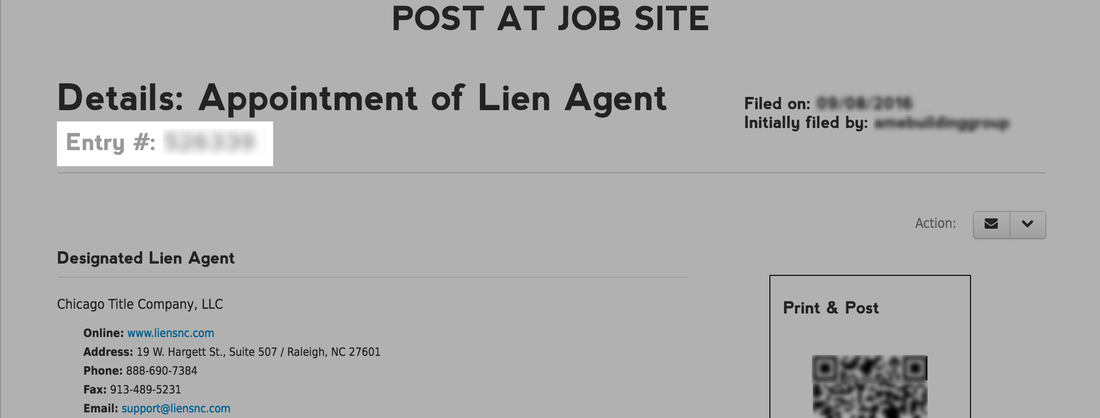
Obtaining the Entry Number is the best way to positively ensure you find the correct construction project. If someone gave you a copy of the filing details printout (or if obtaining a copy from the job site), the project's Entry Number can be found at the top of the page.
DIRECTIONS
Sign Up Sign up to use the LiensNC system or login with your existing user credentials. LOGIN | SIGN UP Select a Search Method... Click on the Entry Number tab to search by the project's Entry Number, or select the Advanced Search tab to filter results by project key words or phrases. Select the Examples tab to see helpful search tips. |
Option 1 - Look up by Entry Number
Searching by Entry Number is the best way to ensure you find the correct project. Each filing in the LiensNC system is assigned a unique identification number (aka Entry Number) that cannot be duplicated.
It can sometimes be difficult to obtain the Entry Number from the person you are working with. Remember, they may not know you need this information unless you ask for it. Communication is key.
It can sometimes be difficult to obtain the Entry Number from the person you are working with. Remember, they may not know you need this information unless you ask for it. Communication is key.
Now that you have the Entry Number, there are two areas where this search option is located in the LiensNC system:
DIRECTIONS
Step 1
Sign up to use the LiensNC system or login with your existing user credentials.
LOGIN | SIGN UP
Step 1
Sign up to use the LiensNC system or login with your existing user credentials.
LOGIN | SIGN UP
|
Step 2
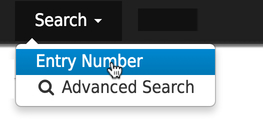
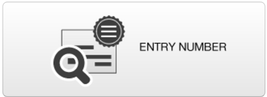
METHOD 1: From the Search drop-down menu at the top of the page, select the 'Entry Number' search option. METHOD 2: From the home page, select the Entry Number button located beneath the Find an Appointment heading. Step 3 From the Entry Number Search page, enter the project's Entry Number in the field provided and select the Search button to see the result. |
|
Results
There will either be one result, which indicates the number is valid, or you will receive a message letting you know that Entry Number does not exist.
There will either be one result, which indicates the number is valid, or you will receive a message letting you know that Entry Number does not exist.
Option 2 - Perform an Advanced Search
If the Entry Number is not available, the Advanced Search option is an alternative searching method.
Once you know some information about the project, there are two areas where the Advanced Search option is found in the LiensNC system:
Once you know some information about the project, there are two areas where the Advanced Search option is found in the LiensNC system:
DIRECTIONS
Step 1
Sign up to use the LiensNC system or login with your existing user credentials.
LOGIN | SIGN UP
Step 1
Sign up to use the LiensNC system or login with your existing user credentials.
LOGIN | SIGN UP
|
Step 2
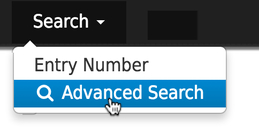
METHOD 1: From the Search drop-down menu at the top of the page, select the 'Advanced Search' option. METHOD 2: From the home page, select the Advanced Search button located beneath the Find an Appointment heading. |

|
Step 3
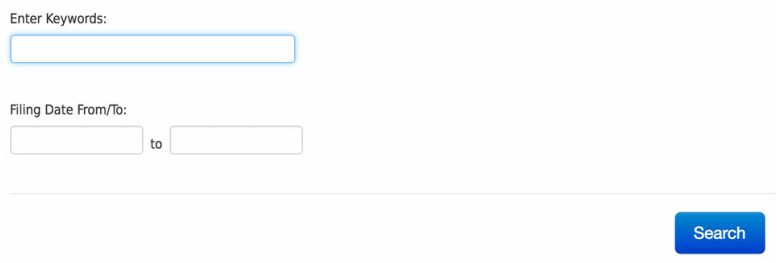
Although using Advanced Search could produce too many results or none at all, it gives users the ability to refine results using one or more filtering capabilities. Note: Filtering results can either work for you or against you, depending on the search criteria used. Be careful!
Advanced Search refinement options include:
First we'll examine the Filing Date Range filter.
Although using Advanced Search could produce too many results or none at all, it gives users the ability to refine results using one or more filtering capabilities. Note: Filtering results can either work for you or against you, depending on the search criteria used. Be careful!
Advanced Search refinement options include:
- Filing Date Range
- Keyword / Phrase
First we'll examine the Filing Date Range filter.
- If you know the exact date or a general timeframe of when the filing was submitted online, enter the date in the From and To fields to narrow results.
• If you are unsure about the From or To filing date, leave one of the fields blank to widen results.
• If you do not know the filing date range, simply leave these fields blank. - Next, select the Search button to see the results of your query.
The Keyword filtering method is a bit more complex.
We aim to assist you with effectively and efficiently finding the information you are seeking by providing you with some of our best practices for searching the LiensNC system. It's important to note that our system uses a Boolean search methodology, which means you can include and/or exclude certain words and phrases to alter the search results.
- Search for the most unique words/phrases from the project information you have.
- Avoid using broad terms that apply to many construction projects.
- Avoid using commonly abbreviated words, such as; road, drive, street, north, highway, etc. Searching for these terms could cause you to eliminate applicable projects.
- Place multiple words in "quotation marks" to search for an exact phrase.
- The connecting word AND (in all caps) will search for all of the keywords/phrases in the query.
- The connecting word OR (in all caps) will search for any of the keywords/phrases in the query.
- The connecting word NOT (in all caps) will eliminate a keyword/phrase from the query.
- Avoid pasting a keyword/phrase into the query that was copied from another source, such as MS Word, as this could adversely alter the results.
- Use caution when searching for words that are often misspelled. (Such as Raleigh) If the filer enters the word incorrectly, the system does not auto-correct the spelling.
- Punctuation is stripped from search queries.
Results
If any results are found, Appointments are the only filings that are listed in the search results, even though the system is searching through all Appointments and Notices. This is important because you may not see the query in the Appointment, which displays on the initial search results page. In order to get a complete look at the entire project information, you will need to drill deeper into the Related Filings Report.
LEARN MORE ABOUT THE RELATED FILINGS REPORT
If any results are found, Appointments are the only filings that are listed in the search results, even though the system is searching through all Appointments and Notices. This is important because you may not see the query in the Appointment, which displays on the initial search results page. In order to get a complete look at the entire project information, you will need to drill deeper into the Related Filings Report.
LEARN MORE ABOUT THE RELATED FILINGS REPORT
Example Search Queries
USE
|
AVOID
|